
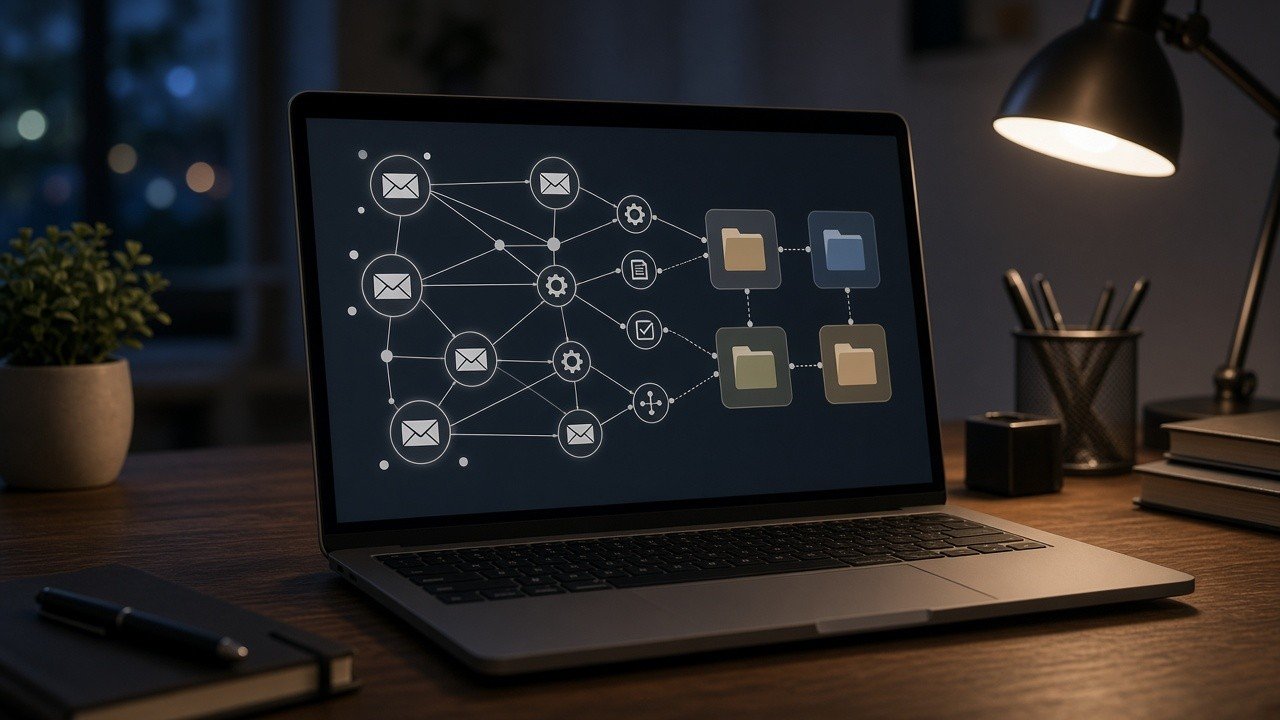
An AI email triage workflow automatically reads incoming messages, classifies them into categories such as urgent, personal, newsletters, or invoices, and applies labels or sends a short summary. Using n8n for automation and a local model through Ollama keeps email content on your own machine instead of sending it to a cloud AI service.
The workflow needs only a few nodes: an email trigger, a step to clean the message text, an AI classification prompt, and actions based on the result. Starting with labels rather than automatic deletion, and reviewing results for a week, keeps the system safe while you tune it.
If your inbox looks anything like mine, the important messages are buried under newsletters, notifications, and promotions. Filters help, as I described in earlier guides on Gmail and Thunderbird, but rule-based filters only understand senders and keywords. They cannot tell that an email from an unfamiliar address is actually a client asking for an urgent quote.
This is where a small AI model shines. In my earlier tutorial, I showed how to connect cloud n8n to a local Ollama instance. This follow-up puts that connection to work on a practical, everyday problem.
By the end of this guide, the finished workflow will:
- Watch your inbox for new emails
- Send the subject, sender, and a trimmed body to a local AI model
- Receive a category and a one-line summary
- Apply a label or move the message to a folder
- Optionally send you a digest of urgent items
What You Need Before You Start
- n8n running locally (Docker is easiest) or in the cloud with access to your Ollama endpoint
- Ollama installed with a small instruction model, such as a recent Llama, Qwen, Mistral, or Gemma variant in the 3B to 8B range
- Gmail credentials configured in n8n, or IMAP access for other providers
- Fifteen to thirty minutes
Smaller models are faster and adequate for classification. You do not need a large model to sort mail.
1. Add an Email Trigger
Create a new workflow in n8n. Add a Gmail Trigger node (or Email Trigger (IMAP) for other providers) and set it to poll for new messages every few minutes. Limit it to the inbox and unread messages so it does not reprocess your entire archive.
Run it once to fetch a sample email for testing.
2. Clean and Trim the Message
Emails often contain long HTML, signatures, and quoted replies. Add a Code or Edit Fields node that:
- Extracts the sender, subject, and plain-text body
- Removes excess whitespace
- Truncates the body to around 1,500 characters
Trimming keeps responses quick and reduces the chance of the model getting distracted.
3. Write the Classification Prompt
Add an AI node connected to Ollama (the Ollama Chat Model with a Basic LLM Chain, or an HTTP Request node calling Ollama’s API). A clear prompt matters more than a big model:
You are an email assistant. Classify the email into exactly one
category: URGENT, WORK, PERSONAL, FINANCE, NEWSLETTER, PROMOTION.
Then write a summary of at most 15 words.
Reply only in JSON: {"category": "...", "summary": "..."}

From: {{sender}}
Subject: {{subject}}
Body: {{body}}
Requesting JSON makes the output easy to use in later steps.
4. Parse the Response
Add a node to parse the JSON returned by the model. Small models occasionally add stray text, so include a fallback: if parsing fails, set the category to “REVIEW”. Never let an unparseable response trigger an action.
5. Route by Category
Add a Switch node with a branch for each category. Then, for each branch, use the Gmail node’s Add Label action or an IMAP move:
- URGENT: label and star
- FINANCE: label “Invoices & Bills”
- NEWSLETTER and PROMOTION: label and mark as read (optional)
- REVIEW: label for manual checking
6. Send a Daily Digest (Optional)
Collect urgent and work summaries into a list and, on a Schedule Trigger, send yourself a morning digest by email or Telegram. This is often the most useful part: a two-line overview of what actually needs attention.
Privacy and Safety Tips
- Keep Ollama on your local network and avoid exposing it publicly
- Store credentials only in n8n’s credential manager
- Do not auto-delete anything; labels are reversible, deletions are not
- Review a sample of classifications each day for the first week
- Exclude sensitive senders, such as your bank, from AI processing if you prefer
Remember that a local model can still be wrong. Treat its labels as suggestions that save you time, not as decisions you never check.
Putting It Together
An AI triage workflow is mostly plumbing: trigger, clean, classify, parse, route. The local model does the judgement work that keyword filters cannot, and your email never leaves your control.
Start with labels only, watch how the model performs for a week, and refine the prompt with examples of emails it got wrong. Once it earns your trust, the morning digest alone can save a surprising amount of attention every day.